 Sky Bloom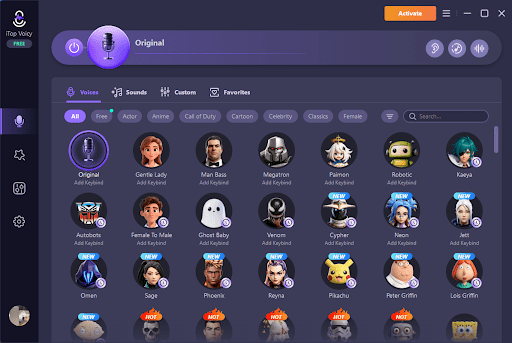
For three months, my short-form videos struggled to get more than 200 views. The ideas were there. The editing was decent. But whenever I listened to my recordings, I could tell something wasn’t working. My voice sounded too plain for the comedy characters I wanted to create, and using the same voice in every video made the content feel repetitive.
Looking for a solution, I started researching voice changers for PC and came across iTop Voicy. It gave me an easy way to experiment with different voices and add more personality to my content without overcomplicating the process.
Why Your Voice Is Limiting Your Content
Most creators focus on visuals, editing, and captions. Voice gets ignored until it actively hurts performance. In comedy content specifically, voice sells the joke. A flat, nervous delivery kills punchlines before the audience even processes them.
The Problem That Kept Killing My Videos
Recording in my natural voice put a ceiling on every character I tried to create. Cartoon villains, robotic announcers, and deep movie trailer narrators all fell flat because I was still clearly just myself speaking into a microphone. You need range to make short-form comedy work, and a single unmodified voice does not give you that.
Transitioning to a proper voice changer for PC changed the entire creative process for me.
A Quick Look at iTop Voicy
iTop Voicy is a real-time voice transformation and sound creation tool built for Windows 10 and Windows 11. It is freeware, so getting started costs nothing. Built by iTop Inc., it uses advanced AI voice modelling and signal processing to deliver instant voice changing with millisecond-level latency and crystal-clear audio output.
The voice library covers hundreds of models,s including male, female, robot, celebrity, cartoon character, and iconic movie role options. Beyond presets, the Voice Lab lets you fine-tune pitch, timbre, and formant manually and layer professional effects including Echo, Reverb, Chorus, Tremolo, and more. You are not working with a novelty slider. This is a proper creative tool.
How I Set It Up for Content Creation
Getting from download to my first recorded clip took me less than ten minutes. Here are the four steps I followed, along with what worked well and what to watch out for at each stage.
Step 1: Download and Install
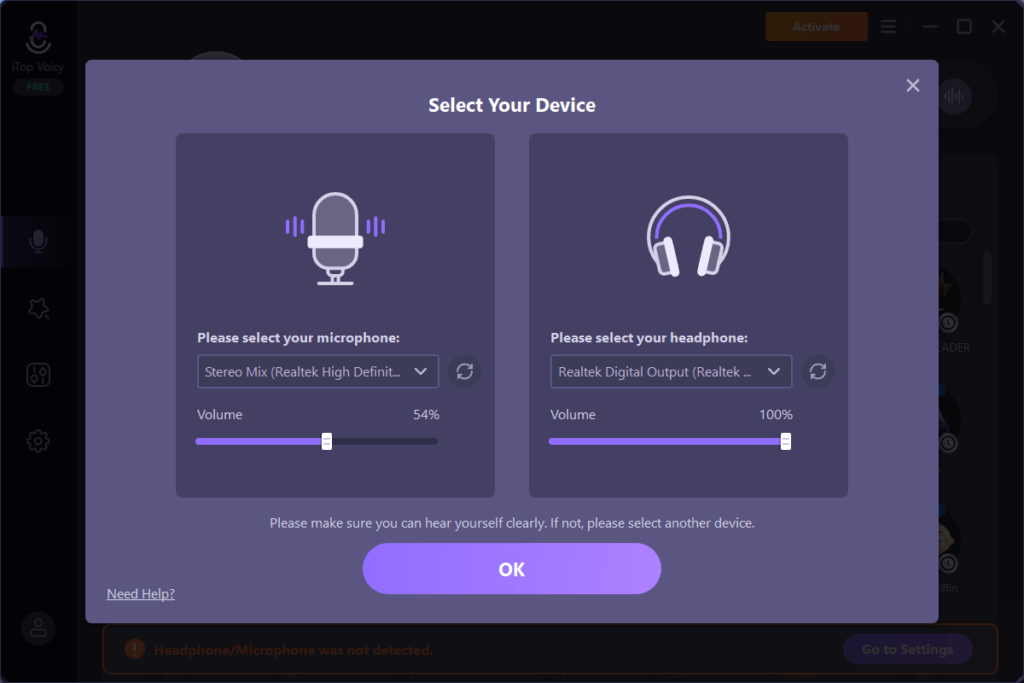
I started by downloading iTop Voicy from the official website. The software runs on Windows 10 and Windows 11, and the installation took only a few minutes. Once it finished, the app launched automatically. After that, you need to configure your microphone.
What I liked right away was how clean the interface felt. Everything was available on the main screen, so I did not have to dig through multiple menus to find important features.
Step 2: Choose a Voice Model
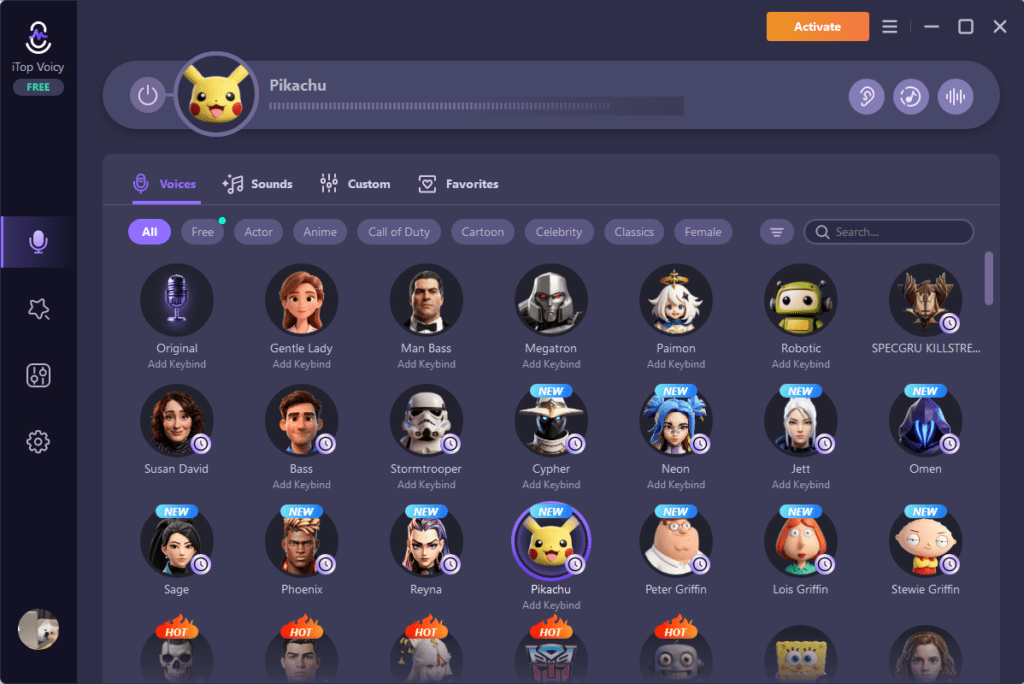
Next, I explored the voice library and tested a few models before making my choice. For my TikTok videos, I picked a cartoon-style voice that matched the personality of the content I was creating.
Being able to preview voices beforehand made the process much easier and saved me from constantly switching between options while recording.
Step 3: Connect It to OBS or Your Recording Platform
After selecting a voice, I connected iTop Voicy to OBS. The setup was simple because the software works with OBS, YouTube, TikTok, Twitch, Discord, Zoom, Microsoft Teams, Google Meet, Roblox, and Fortnite.
I just selected it as my microphone input, and the modified voice came through instantly without any complicated audio routing.
Step 4: Build a Custom Voice in Voice Lab
This step is optional, but it ended up being my favorite feature. Using Voice Lab, I adjusted pitch, timbre, and formant settings while layering extra effects to create something unique.
I spent about twenty minutes building a custom character voice that I now use across an entire video series. Once I saved it, the voice was ready whenever I started a new recording session.
How I Used It to Create Funny TikTok and YouTube Videos
I mainly used iTop Voicy to make my TikTok and YouTube content more entertaining. The voice effects helped me add variety to my videos without spending extra time on complicated editing.
- Comedy Skits: I switched between different voices to play multiple characters, making conversations and jokes feel more dynamic.
- Reaction Videos: I used funny and exaggerated voice presets to make reactions more entertaining and memorable.
- Short-Form Content: Unique voice effects helped grab viewers’ attention quickly, which is important for TikTok and YouTube Shorts.
- Custom Voice Creation: I used Voice Lab to build a signature comedy voice that I could reuse across videos, giving my content a more consistent and recognizable style.
What I Actually Like About It
A few features genuinely made a difference in my day-to-day use.
- The real-time performance is the standout for me. Millisecond-level latency keeps my transformed voice sounding natural and smooth. I never noticed robotic choppiness, delays, or distracting audio artefacts that could ruin a recording or comedy bit.
- The Audio and Video Re-voicing feature has been incredibly useful for post-production. I can import a recorded clip, apply any voice model, and export the finished version in just a few clicks. It saved me hours when I changed a character’s voice midway through a series.
- The Multi-device Sync feature automatically keeps my custom voices and settings consistent across devices. I don’t have to recreate presets whenever I switch between my desktop and laptop.
- I also like the ability to import custom sound effects. It lets me build a more personalised audio setup that fits my content style.
What Could Be Better
There are a few limitations that are worth mentioning.
- Some celebrity-style voice models sound less convincing than the core male and female presets. Their flaws become more noticeable in real recordings.
- Voice Lab comes with a learning curve. I had to figure out settings like formant adjustment through trial and error because there is no built-in tutorial.
- The app only supports Windows 10 and Windows 11, leaving Mac users and older systems unsupported.
My Honest Verdict
Most voice changers I tested before this felt like toys. Fun for a few minutes, then useless for real content work. iTop Voicy, a voice changer for PC, sits in a different category. The audio quality holds up in professional recording contexts, the creative depth in Voice Lab goes far beyond anything I expected from a freeware product, and the cross-platform support means it fits directly into whatever workflow you are already using.
If your voice has been the reason you are avoiding certain content formats, this removes that barrier completely. Download it, run through the presets, spend time in Voice Lab, and build something that actually fits the content you want to make.


 Umar Attique Shah